Posts

Showing posts with the label Apple Watch Question

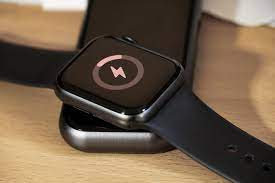
How to Find a Dead or Lost Apple Watch
Image
How to Find a Dead or Lost Apple Watch If you’ve lost your Apple Watch, it may be difficult to retrieve it if you didn’t set up any kind of tracking device or find my iPhone app on your phone. Fortunately, this guide will walk you through some of the steps you should take in order to locate your watch. But before we get started, let’s make sure your watch isn’t just dead rather than lost, and that you can follow these instructions even if it doesn’t have any battery power left. Look for the Watch App If you’re trying to find your dead or lost Apple Watch, the first step is to look for the Watch app on your iPhone. This app will show you the last known location of your device if it has been turned on recently. You can also use the Find My app to locate the watch if it is still connected to your phone. If your watch is not connected to your phone or is turned off, you may still be able to locate it by enabling Lost Mode in the Find My app. Lost Mode can be enabled from any...

How to Reset Your Apple Watch After Too Many Passcode Attempts

Image
Your Apple Watch’s passcode can be useful for protecting your information and privacy, but it can also be frustrating when you accidentally forget your passcode, or want to change the passcode to something new. This article will walk you through how to reset your Apple Watch after too many passcode attempts, as well as how to reset your passcode if you are having issues remembering it. Launch the Settings app on your iPhone If you have entered the wrong passcode too many times on your Apple Watch , you may be wondering how to reset it. Luckily, there is an easy way to do this without having to completely reset your device. Here is how to reset your Apple Watch after too many passcode attempts: First, launch the Settings app on your iPhone. Scroll down and tap on General and then tap Apple Watch. From here, select the option to Unpair Apple Watch and confirm that you would like to unpair it. This will remove the connection between your iPhone and Apple Watch, essentially rese...

Apple Watch Update: Apple Seeds watchOS 9.2 Beta 4 to Developers

Image
Apple just released watchOS 9.2 Beta 4 to developers, bringing updates and new features to the Apple Watch, including Theater Mode and updates to SiriKit, which allows users to use Siri on their watch to interact with third-party apps. These new features come as Apple gears up for the holiday season and prepares to launch new Apple Watch models soon, so it’s essential that you update your devices and apps so that you’re ready when the Apple Watch 2 launches in early 2017. Here’s how you can update your Apple devices to the latest version of watchOS 9.2 Beta 4 and watch preminum experience of watching Anime , Listen Songs and etc Introduction Apple Watch users have something to look forward to as Apple has just seeded watchOS 9.2 Beta 4 to developers. With this update, Apple Watch users can expect to see bug fixes and improvements to their device. The Apple WatchOS 9.2 Beta 4 includes new features such as a new workout app, sleep tracking, and access to ECG readings. Additional...

How to turn off downtime on apple watch?

Image
How to turn off downntime on apple watch this question is continously asked by the user. this happen because in your apple watch shared across device option enabled and by this your apple watch will still synchronize screen time settings with your phone. If you go to screentime setting you can see all device button. list of device show are Iphone, Ipad and MacBook. for example if your watch and iphone connected to bluetooth Its a chance that your screen time Synchronize. If you turn off downtime on apple watch follow these method : Method 1 : how to turn off downtime on apple watch se Open Setting App Tap Screen Time Tap on downtime and Slide Down to switch off. This method can turn off downtime on both your phone and watch. if this method isn't working go and try method 2. Method 2 : how to turn off downtime on apple watch series 3 Try restarting your watch. after restarting it gain sync with your phone and again follow Method to turn off downtime....

How to delete messages on apple watch

Image
Day by day popularity of apple watch has been increased. The people ask various types of questions related to it. In this article we covered most rare and popular question. how to delete message on apple watch. but before that question raise its impotant to understand why people delete message on their digital watches. The Apple Watch comes with up to 32 GB of storage space, depending on the which watch you used. later this storage space is likely to be filled so, thats why its better to cleanup space time to time. In which more unusefull things to delete text messages on apple watch to save storage space because usually apple watch is sync to Iphone and you can use your watch to reply message or even pickup calls. How to delete messages on Apple watch Deleting message on apple watch is not a really big task. here we simply this process in easy simple 5 steps. From the Watch face screen, press the Digital Crown to access the Apps screen. Tap on the Messages icon to acces...